
Within the Mantid Workbench you can make use of the script window or IPython prompt to manipulate data and build plots exactly to your specifications in ways that you would not be able to with the interface alone.
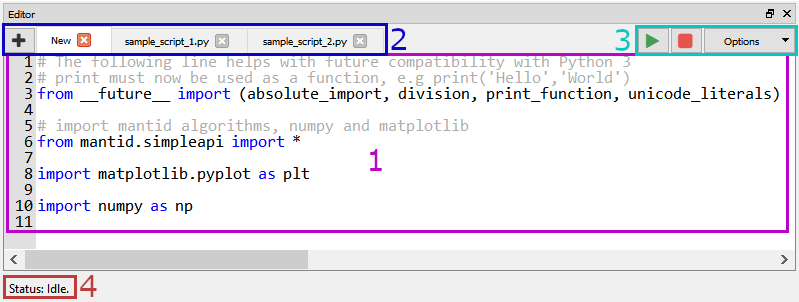
You can also use the IPython tab below the script editor to change to an inline Python interpreter. Both the python interpreter and scripts run thorugh Mantid are able to interact with Mantid workspaces, plot and algorithms.
By default any new script opened in Workbench will come with some default imports:
from __future__ import (absolute_import, division, print_function, unicode_literals)
This provideds compatability between scripts written in Python2 and Python3, notably all print statements must not use brackets.
from mantid.simpleapi import *
This imports all the algorithms from Mantid to be used within your Python script.
import matplotlib.pyplot as plt
import numpy as np
This imports Matplotlib for use as well as the excellent NumPy package.
These imports used to happen automagically for you invisibly in Mantidplot. But in the workbench they are visibly added at the top of the script, so script that work in the workbench will work elsewhere as well.
To open a new script you can click on the + button, or to open an existing script in a new tab go to “File” -> “Open Script” in the Workbench taskbar or use the hotkey Ctrl + o. From the script window you can also tab different scripts working on each independently and multiple scripts can be run simultaneously. Workbench will restore any tabs that were open the last time Mantid was shut down.
From here you can run or abort your script, toggle options for accesability, and use the find and replace tool.
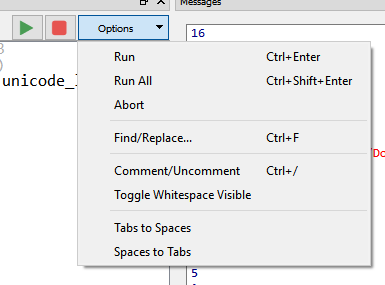
The toggle whitespace visible option is global and will effect the apperance of all your tabs.
The status bar tells you if the code in the currently open tab is running or not. If the code has been run previously the status bar will give deatils of the previous run including runtime, and whether the code ran without errors.