
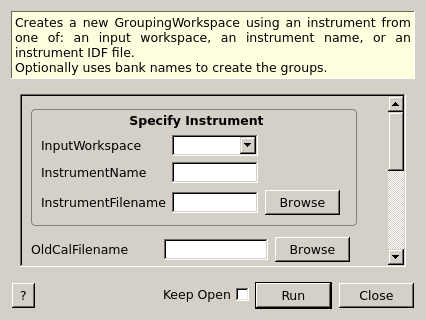
CreateGroupingWorkspace dialog.
Table of Contents
Creates a new GroupingWorkspace using an instrument from one of: an input workspace, an instrument name, or an instrument IDF file. Optionally uses bank names to create the groups.
| Name | Direction | Type | Default | Description |
|---|---|---|---|---|
| InputWorkspace | Input | MatrixWorkspace | Optional: An input workspace with the instrument we want to use. | |
| InstrumentName | Input | string | Optional: Name of the instrument to base the GroupingWorkspace on which to base the GroupingWorkspace. | |
| InstrumentFilename | Input | string | Optional: Path to the instrument definition file on which to base the GroupingWorkspace. Allowed extensions: [‘.xml’] | |
| OldCalFilename | Input | string | Optional: Path to the old-style .cal grouping/calibration file (multi-column ASCII). You must also specify the instrument. Allowed extensions: [‘.cal’] | |
| GroupNames | Input | string | Optional: A string of the instrument component names to use as separate groups. Use / or , to separate multiple groups. If empty, then an empty GroupingWorkspace will be created. | |
| GroupDetectorsBy | Input | string | Only used if GroupNames is empty. Allowed values: [‘’, ‘All’, ‘Group’, ‘2_4Grouping’, ‘Column’, ‘bank’] | |
| MaxRecursionDepth | Input | number | 5 | Number of levels to search into the instrument (default=5) |
| FixedGroupCount | Input | number | 0 | Used to distribute the detectors of a given component into a fixed number of groups |
| ComponentName | Input | string | Specify the instrument component to group into a fixed number of groups | |
| OutputWorkspace | Output | GroupingWorkspace | An output GroupingWorkspace. | |
| NumberGroupedSpectraResult | Output | number | The number of spectra in groups | |
| NumberGroupsResult | Output | number | The number of groups |
A GroupingWorkspace is a simple workspace with one value per
detector pixel; this value corresponds to the group number that will
be used when focussing or summing another workspace.
This algorithm creates a blank GroupingWorkspace. It uses the
InputWorkspace, InstrumentName, OR InstrumentFilename
parameter to determine which Instrument to create.
If the OldCalFilename parameter is given, the .cal ASCII file
will be loaded to fill the group data.
If the GroupNames parameter is given, the names of banks matching
the comma-separated strings in the parameter will be used to
sequentially number the groups in the output.
If both the FixedGroupCount and ComponentName parameter are
given then the detectors for the given component will be grouped into
the number of groups specified, detectors will be left ungrouped in
the event that the number of detectors does not divide equally into
the number of groups.
GroupDetectorsBy has five options
All create one group for the whole instrumentbank Creates one group per instrument component that starts with the word bankGroup Creates one group per instrument component that starts with the word Group. POWGEN will create groups for North and South. SNAP will create groups for East and West.Column Creates one group per instrument component that starts with the word Column2_4Grouping (SNAP only) creates one group of 4 columns of SNAP detectors and another with the remaining 2 columns. This grouping is used frequently in their reduction.Example - CreateGroupingWorkspace for MUSR Instrument
Note
To run these usage examples please first download the usage data, and add these to your path. In Mantid this is done using Manage User Directories.
# Run algorithm with instrument specified
result = CreateGroupingWorkspace(InstrumentName="MUSR")

# Confirm instrument in grouping workspace.
grouping = result[0]
inst1 = grouping.getInstrument()
comp1 = inst1.getComponentByName("MUSR")
print("Instrument name = {}".format(comp1.getName()))
Output:
Instrument name = MUSR
Example - CreateGroupingWorkspace from MUSR workspace
# Create Workspace
load_result = Load("MUSR00015189")
group = load_result[0]
ws_1 = group[0]

# Run algorithm with workspace
result = CreateGroupingWorkspace(InputWorkspace=ws_1)

# Confirm instrument in grouping workspace.
grouping = result[0]
inst1 = grouping.getInstrument()
comp1 = inst1.getComponentByName("MUSR")
print("Instrument name = {}".format(comp1.getName()))
Output:
Instrument name = MUSR
Example - CreateGroupingWorkspace from GEM Instrument Definition
# Run algorithm with Instrument Definition File
result = CreateGroupingWorkspace(InstrumentFilename="GEM_Definition.xml")

# Confirm instrument in grouping workspace.
grouping = result[0]
inst1 = grouping.getInstrument()
comp1 = inst1.getComponentByName("GEM")
print("Instrument name = {}".format(comp1.getName()))
Output:
Instrument name = GEM
Example - CreateGroupingWorkspace for IRIS graphite component
grouping_ws, spectra_count, group_count = CreateGroupingWorkspace(InstrumentName='IRIS', ComponentName='graphite', FixedGroupCount=5)

print("Number of grouped spectra: {}".format(spectra_count))
print("Number of groups: {}".format(group_count))
Output:
Number of grouped spectra: 50
Number of groups: 5
Categories: AlgorithmIndex | Utility\Workspaces | Transforms\Grouping
C++ header: CreateGroupingWorkspace.h (last modified: 2018-10-05)
C++ source: CreateGroupingWorkspace.cpp (last modified: 2019-11-24)